Installing, notifications and language
Get an update when your song is ready and set Kleep up for your device.
Notifications
The notification bell (at the top of the page on a computer, in the profile menu in the bottom bar on a phone) shows new followers, likes on your songs and videos that are ready. To find out your song is ready even when the page is closed, turn on "Push notifications" in your profile, or accept the prompt "Get notified when your songs are ready". If it says "Blocked in browser settings", allow notifications for kleep.art in your browser's site settings and try again. In Safari on iPhone, push notifications work only after you add Kleep to your Home Screen. The Kleep apps for iOS and Android don't currently have push notifications, so notifications appear in the bell.
Installing Kleep on your phone
On iPhone and iPad, download the Kleep app from the App Store - the badge is at the bottom of the site. On other phones and computers, install Kleep from your browser: when the "Install app" prompt appears, click it, or use your browser's add to home screen option.
Language and accessibility
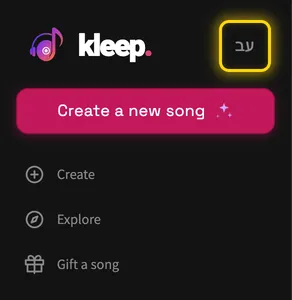
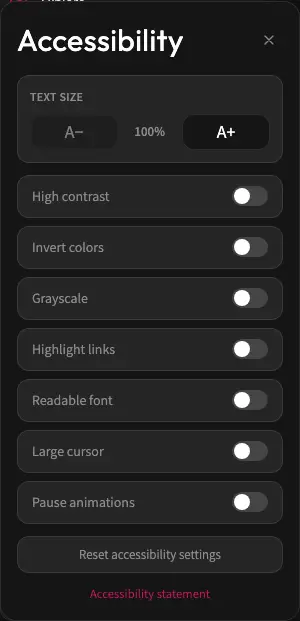
When you're signed in, open the account menu (on a computer next to the bell, on a phone with the profile button in the bottom bar) and choose English or Hebrew in the "Language" row. When you're signed out, click the language button, which shows the other language's letters: at the top of the sidebar on a computer, and at the top of the page on a phone. In Hebrew, the whole site, including the help center, switches to right-to-left. Accessibility options open from the link at the bottom of the page.
Which notification is missing?
The bell on the site shows updates in your account. A push notification also needs permission from your browser or system. If an update shows in the bell but not on your phone, check your notification permissions and device settings. Once you've given permission, you don't need to stay on the creation page.
Installing isn't buying a subscription
Install options differ between iPhone, browser and computer. Having the app installed doesn't mean you have Premium. Check your plan in your profile, and use the billing guide to see where to manage a purchase made through Apple.
Still need help?
Message us on WhatsApp and we'll be glad to help. What to include in your message